
Before you activate cable modem service with equipment you bought yourself, prepare the route back to a working connection. The job includes provider authorization, physical installation, router reconnection, service checks, and any equipment return. A lit indicator is one checkpoint in that process.
You do not need to improvise a provider’s activation procedure. You need the current instructions for your account, the correct device identifiers, and a stopping condition when progress fails.
This guide helps you stage that change. Provider guidance below was checked on October 10, 2026 and must be rechecked before a maintenance window. These are documentation-based instructions; no installation or speed test is presented as a performed test.
For buying, compatibility, costs, and diagnostics, return to the reference hub Own Your Cable Modem: Buy, Activate, and Operate It With Your U.S. ISP. This spoke focuses on a controlled activation with evidence and recovery.
📋 Finish Approval Before Disconnecting Anything
Confirm the exact modem is eligible for your service address, download and upload tier, and associated services. Do not start the change while a telephone-equipment requirement or model-identity question remains unresolved.
Xfinity’s customer-owned guidance checked on October 10, 2026 directs subscribers to its account or address-based My Device Info process. Use the result for the service you intend to operate. A device’s appearance in a general shopping list does not replace that context. Xfinity customer-owned equipment guidance.
Check your authority to make the change. Have the necessary account login, required authentication method, and provider support route available. Confirm you can use them before the existing connection disappears.
Choose a maintenance window appropriate for the household. Tell anyone relying on the network when it may be unavailable. If provider telephone service is involved, plan for its interruption and have an alternative communication method.
🧰 Stage Equipment, Records, and an Exit
Prepare a small change packet:
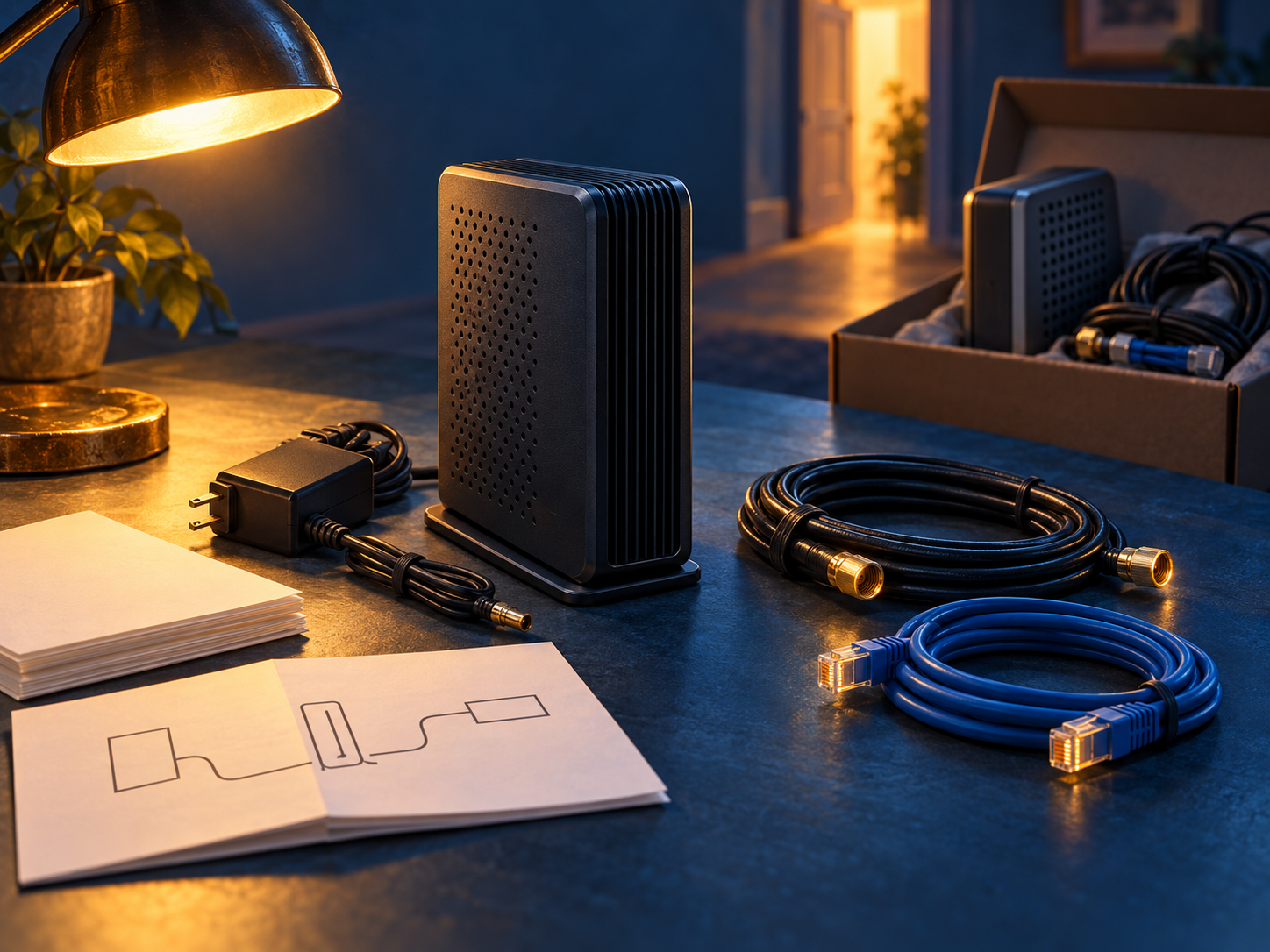
| Item | Why it is needed |
|---|---|
| Dated approval record | Establishes the exact device/service match |
| Current official activation instructions | Defines the provider route and requirements |
| New modem and specified power supply | Avoids substituting an unsuitable adapter |
| Active coax connection and Ethernet cable | Supplies the physical paths |
| Device label and manufacturer instructions | Identifies the unit and its indicators |
| Account access and independent communication route | Supports activation and assistance during interruption |
| Old equipment and connection diagram | Preserves a possible recovery arrangement |
| Router backup, where supported | Helps restore local configuration if needed |
Keep the old equipment until the new service and related functions have been validated. Record its identity and wiring before removing it. Do not assume that reconnecting it automatically restores service: the provider may have changed the active device on the account and may need to reactivate the old one.
Set a stopping condition in advance. For example: If the official activation flow cannot be completed within our maintenance window, stop making unrelated changes and contact the provider to establish the next step or restore the previous device. Choose the window yourself; a manufacturer’s estimated startup time is not a household’s recovery plan.
🏷️ Identify the Modem, Not a Different Interface
Record the manufacturer, exact model, serial number, and identifier requested by the ISP. A device or package may show several MAC addresses. The cable interface may be labeled CM or HFC; router WAN, LAN, and wireless interfaces are different identities.
Use the provider and model documentation to determine which identifier is needed. Do not submit the first MAC number you see because it has the right number of characters. Keep the label available when support helps you distinguish entries.
Warranty registration is another process. ARRIS’s S33/S34 documentation describes a manufacturer product-registration prompt in its web manager. That concerns the manufacturer relationship; it does not establish ISP provisioning. ARRIS S33/S34 web-manager and registration context.
Never change a model identity or spoof an identifier to pass an approval check. If the genuine device is rejected, resolve eligibility or use approved equipment. Record the actual unit so later support has an accurate starting point.
Keep complete identifiers private. Redact serial numbers, MAC addresses, account details, and public addresses before posting screenshots publicly. Supply necessary originals through the provider’s authenticated support route.
🔌 Connect According to the Model Guide
Use an active coax outlet and the correct power supply. If replacing working equipment, the existing connection is useful context; an unused outlet is not automatically connected to the provider network.
Follow the manufacturer’s installation and power instructions. Make the coax connection as directed, with suitable physical access and ventilation. Do not borrow a power adapter simply because its plug fits.
Read indicators using the exact model’s guide. Names, colors, blink patterns, and startup sequence differ. Record what you actually see and how long it has persisted rather than describing it as the normal light.
An online indicator can show progress in establishing the cable connection. It does not prove account activation, correct service provisioning, or successful internet use by your client. Sparklight’s published customer-owned instructions, for example, place its registration contact after the modem reaches the specified online state. Sparklight customer-owned modem installation.
If the expected state never appears, use the guide’s troubleshooting boundary and contact route. Avoid immediately factory-resetting several devices: doing so can introduce configuration loss while the original physical or approval problem remains unresolved.
🗺️ Follow the Provider’s Actual Activation Route
The following routes were checked on October 10, 2026. Open the linked instructions again before changing service; interface labels and requirements can evolve.

Xfinity: its official guide supports activation of approved customer-owned modems through the Xfinity app and requires a Primary or Manager account role. For a replacement, it describes the Account tab, equipment setup entry, and Xfinity Gateway or Modem option. This is a combined gateway/modem guide, so its Wi-Fi setup steps do not imply a standalone modem supplies wireless networking. Xfinity app activation.
Optimum cable: the compatible-modem page directs customer-owned activation through its telephone support route. The same page separates internet-only criteria from phone-certified equipment. Use its current official contact information and confirm the instructions apply to your cable service. Optimum compatible modem guidance.
Sparklight: the guide instructs customer-owned users to contact Technical Care to register the modem after the specified online state, with its MAC available. Follow the page for the current route and timing rather than substituting another ISP’s app procedure.
Astound cable: its BYOM guide describes calling with the new modem’s MAC, along with market/tier and Digital Phone requirements. Confirm that your service is eligible before using the switching instructions. Astound bring-your-own-modem guidance.
Spectrum and Cox procedures were not fully verified for this guide. Obtain their current official account-specific activation instructions before disconnecting equipment. Do not reuse an old self-install URL or another provider’s procedure simply because the physical modem looks similar.
🧪 Reconnect the Router and Validate in Layers
After provider activation, reconnect the router according to the model/provider instructions. Use the intended modem Ethernet and router WAN ports. Follow the documented restart or reconnect sequence if required; repeated arbitrary resets are poor substitutes for a defined procedure.

Then check the service in layers:
| Check | Evidence to record |
|---|---|
| Physical Ethernet link | Connected ports and negotiated rate shown, if available |
| Router WAN connection | Status and addressing reported by the router |
| Wired internet use | A wired client successfully reaches an appropriate internet destination |
| DNS | Ordinary domain names resolve and sites load through the intended configuration |
| IPv6, when supplied | Router/client status and a repeatable IPv6 connectivity check |
| Expected performance | Test arrangement, time, concurrent traffic and result |
| Associated services | Provider-approved telephone/other service validation |
These are proposed checks, not reported results. Use your actual observations to fill the table. Absence of IPv6 needs investigation in the context of your provider and router configuration; it is not automatically evidence that modem activation failed.
Prefer an initial wired test through the normal router arrangement because Wi-Fi adds another variable. If your provider or manufacturer requires a direct-computer isolation test, follow that specific guidance with an updated computer and enabled host firewall, then restore the router afterward.
Keep DNS, VPN, traffic-management, and other router settings stable during the change where practical. If ordinary traffic fails only through a particular router configuration, that is a different observation from the modem failing to connect to the provider. Record the distinction.
Do not declare success solely from a speed-test number. Confirm required household services, account activation status, and a repeatable working arrangement. Performance interpretation belongs in the reference hub and diagnostics spoke.
🛟 Recover Without Losing the Evidence
If activation stops, record the step, exact error, modem indicators, elapsed time, and account context. Share that evidence with the provider. Preserve useful state before performing a reset that may erase it.
Ask whether the issue is approval, the submitted identifier, incomplete account setup, an inactive outlet, or another service condition. Do not insist on a defective modem diagnosis without evidence.
If restoring the old arrangement is the best next step, confirm the provider’s reactivation requirements. Reconnect according to its instructions and validate service again. A rollback is successful when the required connection works, not when the old cables are back in place.
After any reset or restoration, verify administration credentials and router configuration. Note what changed. Your final record should describe both the working state and any unresolved limitation, so the next maintenance session starts with evidence.
🧾 Finish the Return and Billing Checks
Once the new arrangement and associated services work, follow the provider’s instructions for returning leased equipment. Keep the receipt, returned serial details, and date. Return only the equipment that the provider requires; a retained voice device may still be part of the working design.
Astound’s BYOM guidance explicitly connects returning its modem with avoiding rental fees, but your applicable account terms determine the financial result. Confirm any expected recurring change and inspect the next bill.
Record completion separately: modem activated, router restored, wired service validated, associated services validated, leased equipment return acknowledged, and bill checked. This separation catches a common administrative gap: internet access can work while a return or charge remains unresolved.
❓ Frequently Asked Questions
Is warranty registration enough to activate internet service?
No. Manufacturer registration and ISP provisioning serve different purposes. Complete the provider’s activation process.
Which MAC address should I supply?
Use the identifier requested by your ISP and the exact model documentation. Do not substitute a router WAN or Wi-Fi MAC for the cable modem identifier.
Does an online light mean activation is finished?
It is a useful checkpoint, but service authorization and client validation remain separate. Interpret the light according to the model guide.
Can I reconnect the old modem if the new one fails?
Keep it as a recovery option, but ask the provider whether reactivation is required. Reconnection alone is not a guaranteed account rollback.
Should I change router settings while activating?
Keep unrelated settings stable where practical. Complete and document one change before adding others, so failure or improvement can be interpreted.
When is it safe to return leased equipment?
After validating the new arrangement and required associated services, then following the ISP’s return requirements. Keep the receipt and check billing afterward.
🔗 Further Reading
- Xfinity app activation — check current account-role and app requirements.
- Optimum compatible modem guidance — obtain its current customer-owned activation route.
- Sparklight customer-owned modem installation — follow its physical and registration sequence.
- Astound bring-your-own-modem guidance — inspect switching and associated-service requirements.
📦 Recommended Resources
Some links below are Amazon affiliate links. If you buy through them we earn a small commission at no extra cost to you.
Activation is a change window with a rollback plan, which is an operations problem. The reading reflects that.
- Building Secure and Reliable Systems by Heather Adkins, Betsy Beyer, Paul Blankinship, Piotr Lewandowski, Ana Oprea and Adam Stubblefield — Google’s companion to the SRE books, and the best treatment of the thing this article is really teaching: designing a change so that failure is recoverable. The chapters on designing for recovery are the ones to read before you unplug anything.
- Computer Networks: A Systems Approach by Larry L. Peterson and Bruce S. Davie — so the validation steps make sense as layers rather than as a ritual. Knowing why you check the WAN lease before you check DNS is the difference between diagnosing and poking.
- TCP/IP Illustrated, Volume 1: The Protocols by Kevin R. Fall and W. Richard Stevens — read it for what “online” actually means. A modem light is a claim about one layer; this book covers the several above it that also have to work.
✅ Pro tip: write the stopping condition down before you start, with the provider’s number next to it. A maintenance window without a documented way back is just an outage you scheduled.